Recipes · Meal plans · Grocery list
Simple recipes. Delicious meals. Made to share.
Recipes, meal plans and your grocery list in one place — made to share.
ListThisMeal keeps your recipes, your meal plan and your grocery list in one place, so deciding what to cook and buying what you need takes minutes.
Scan to get the appPoint your phone’s camera at the code.
For Android phones and tablets.
01
Recipes from around the world
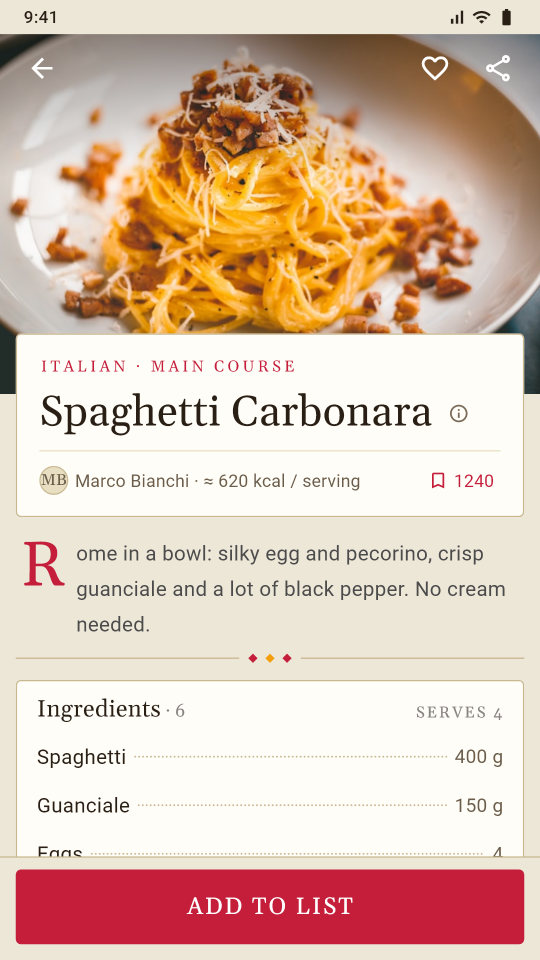
- Browse hundreds of recipes from more than 80 cuisines, from Chicken Adobo and Pad Thai to Tacos al Pastor and Spaghetti Carbonara.
- Save the recipes you love and group them into collections.
- Write your own recipes with photos, ingredients and steps. Keep each one private, share it with your followers or publish it for everyone.
- Use one of your recipes inside another, like a sauce or a stock.
02
Cook around your allergies
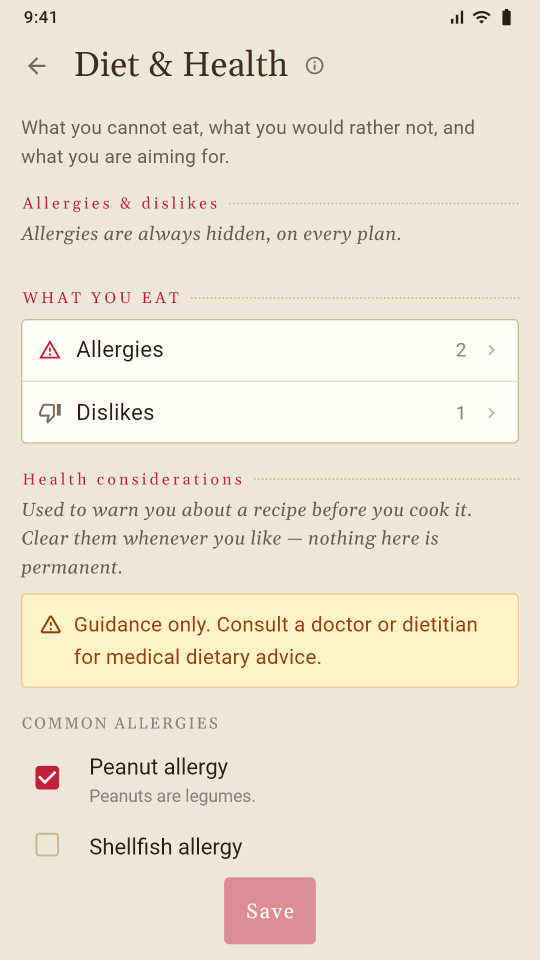
Record your allergies and the ingredients you avoid, and recipes that contain them are kept out of your way.
Allergy and health filters are guidance, not medical advice. Always check ingredient labels yourself.
03
A grocery list that knows your recipes
- Add a recipe's ingredients to your list in one tap, scaled to the number of people you are cooking for.
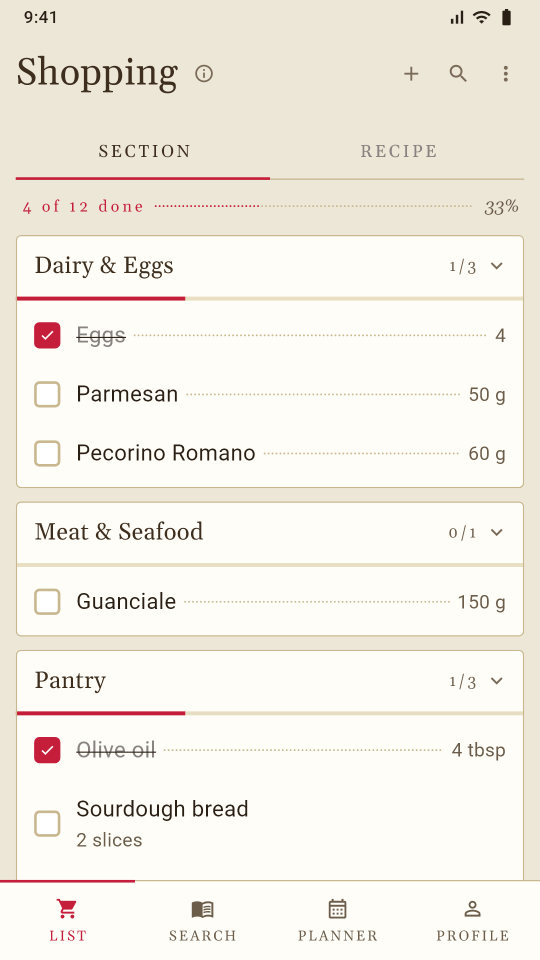
- Items are grouped by aisle, and the same ingredient from different recipes is added together.
- Note what you already have at home, and tick items off as you shop.
04
Plan the week together
Pro · Group
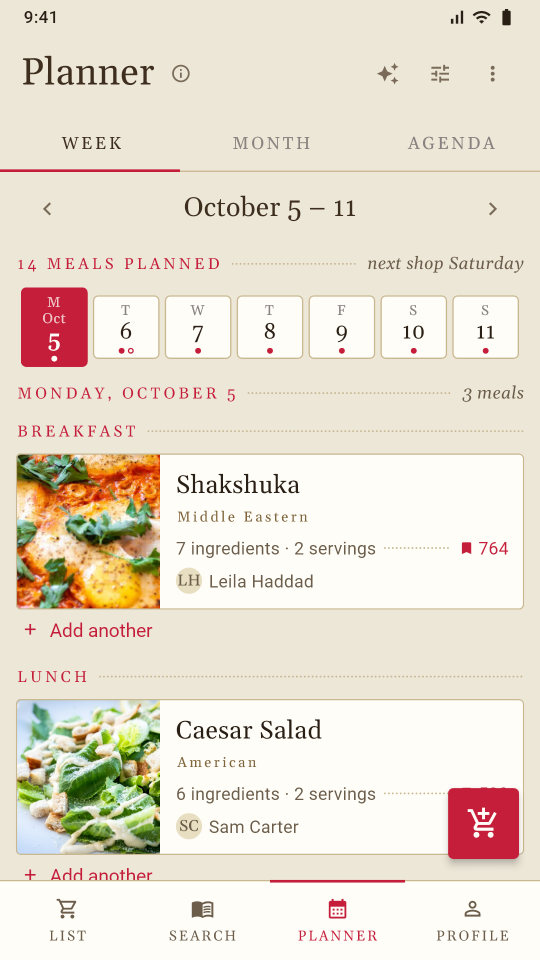
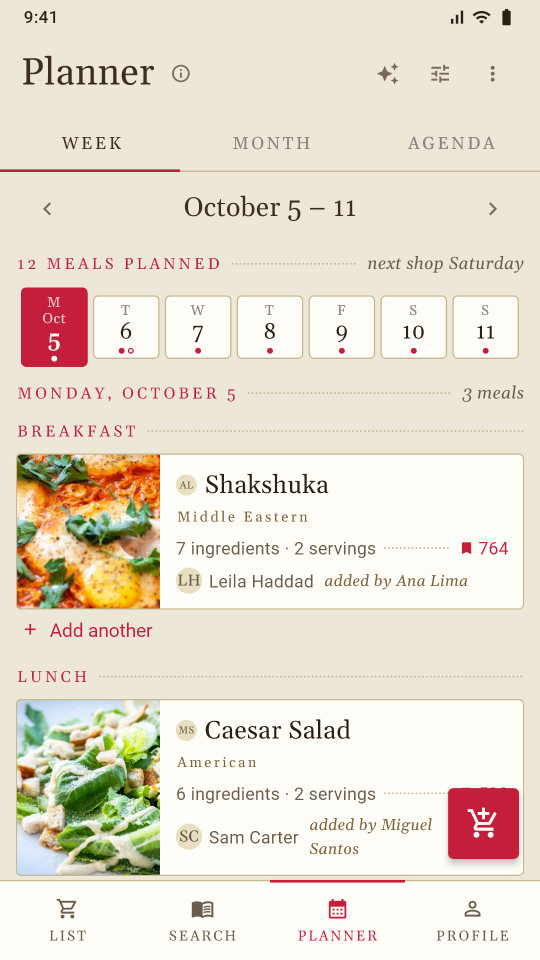
- Plan breakfast, lunch, dinner and more on a week, month or agenda calendar.
- Share one meal planner and one grocery list with up to four people, and see who added what.
- Let Surprise Me fill empty days with recipes that suit you.
- Mark leftovers, and send a day's meals straight to your grocery list.
The meal planner comes with Pro. Sharing it with up to four people comes with Group.
05
Cook with what you have
Pro
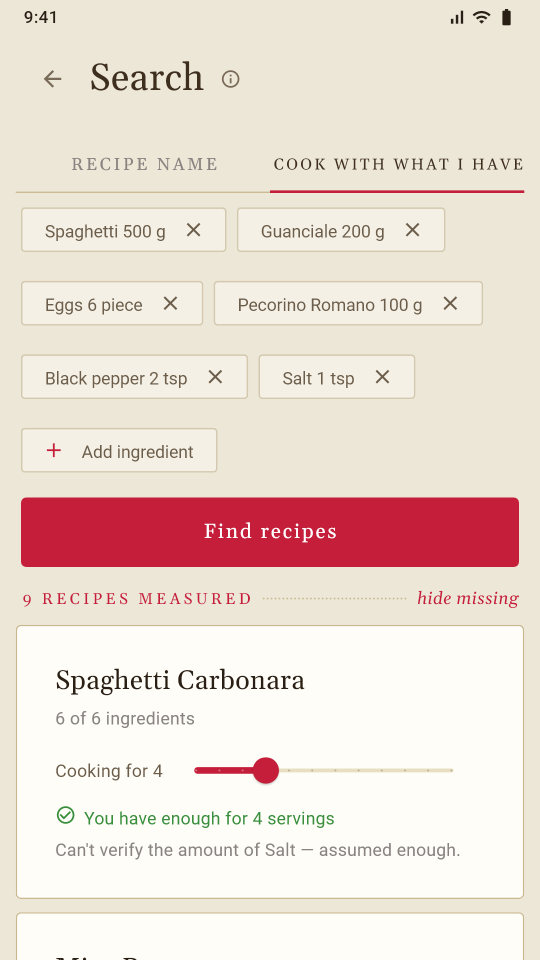
Tell it what is in your kitchen and it finds recipes you can make tonight.
- Add what you have, and how much of it.
- Every recipe is measured against it, and says whether you have enough and for how many people.
- Anything you are missing is named, so you know what to buy.
Plans
Free to use. Upgrade when you want more.
| What you get | FreeFree forever | ProAd-free. Nothing capped. | Group4 seats · one payer |
|---|---|---|---|
| Recipes | |||
| Action points a day: opening a recipe, saving, following, sharing and each change to your list use one; ticking things off uses none | 20, more with a short ad | No limit | No limit |
| Write your own recipes, with photos | Yes | Yes | Yes |
| Bookmarks, follows and collections of your own | Yes | Yes | Yes |
| Share a recipe or a collection with a link | Yes | Yes | Yes |
| Use one of your recipes inside another, like a sauce | Yes | Yes | Yes |
| Search by voice, and hear a recipe read aloud | Yes | Yes | Yes |
| Save other cooks' collections | No | Yes | Yes |
| Calories and nutrition for each recipe | No | Yes | Yes |
| Allergies and health | |||
| Your allergies and the ingredients you avoid, kept out of your way | Yes | Yes | Yes |
| Warnings on recipes for your health considerations | Yes | Yes | Yes |
| Hide the recipes those warnings are about | No | Yes | Yes |
| Choose a diet, like vegetarian or vegan | No | Yes | Yes |
| Daily nutrition targets | No | Yes | Yes |
| Grocery list | |||
| A list sorted by aisle, the same ingredient added together | Yes | Yes | Yes |
| Tick items off as you shop | After a short video | Yes | Yes |
| Note what you already have at home | Yes | Yes | Yes |
| Planning | |||
| Meal planner: week, month and agenda | No | Yes | Yes |
| Surprise Me fills empty days with recipes that suit you | No | Yes | Yes |
| Leftovers, and a day's meals sent to your list | No | Yes | Yes |
| Cook with what you have | No | Yes | Yes |
| A weekly email of new recipes from cooks you follow | No | Yes | Yes |
| Together | |||
| One meal planner and one grocery list for up to 4 people | No | No | Yes |
| See who added what | No | No | Yes |
| Say who cooks a meal and who buys an item | No | No | Yes |
| Everyone in the group gets Pro, with their own login | No | No | Yes |
| One person pays, and invites the rest by email | No | No | Yes |
| Everywhere | |||
| Ads | Shown | None | None, for everyone |
| Saved to your account: sign in on a new phone and it is all there | Yes | Yes | Yes |
| The app in 22 languages | Yes | Yes | Yes |
| Help from Cartie, or from a person by email | Yes | Yes | Yes |
Allergy and health filters are guidance, not medical advice. Always check ingredient labels yourself.
Subscriptions renew automatically until you cancel them in Google Play, which shows each plan's price in your currency.
Get ListThisMeal
For Android phones and tablets. Coming soon to iPhone.
Someone shared a recipe with you
It opens in the ListThisMeal app on your phone.
Don’t have the app yet?
For Android phones and tablets.
Open this link on your Android phone, or scan the code to get the app first.
Stop the weekly digest?
You will stop getting the weekly digest email. Nothing else about your account changes.
Unsubscribing…
Unsubscribed
You will not get the weekly digest email again. Everything else about your account is unchanged, and you can turn it back on in {path} whenever you like.
That link has expired
We could not match this link to an account. If you are still getting the digest, open {path} in the app and turn it off there.
Couldn’t reach the server
Nothing has changed yet. Try again, or turn the digest off from {path} in the app.
Test ListThisMeal for two weeks, earn up to 3 months of Pro
You need an Android phone and a Google account. Joining takes about 3 minutes and costs nothing. Then do one small task a day in the app for 14 days. Every tester gets 1 month of Pro free when ListThisMeal launches, and your points can earn more: 2 months at 100 points, and 3 months for all 120.
Facebook and Messenger open links in their own browser, which isn’t signed in to your Google account. Open this page in Chrome first.
Or tap ⋮ at the top right and choose Open in Chrome.
-
Join the testers’ group
Google Groups opens. Tap Join group. If it asks again, tap Join group once more. Use the same Gmail as your phone's Play Store.
-
Become a tester
Google Play opens. Tap Become a tester. If it says “not found”, check that you are in Chrome and signed in with the same Gmail as in step 1.
-
Install the app
Tap Install. Right after step 2 it can take a few minutes to show up; if it isn't there, try again in a few minutes.
-
Make your account in the app
Open ListThisMeal and tap Create account. Don't tap Try without an account: without an account you can't save, follow or write a recipe, so most of the tasks wouldn't count.
Already testing? Don't uninstall the app. Update it if the Play Store asks, sign in, and start below.
Then, every day for 14 days
- Open the app every day. That alone earns 2 points a day.
- Every day, a notification gives you that day's task. Tap it and your Achievements page opens. If your phone asks whether ListThisMeal may send notifications, allow it.
- At the bottom of the screen, tap Profile (the last button, on the right). Then tap Achievements, just under Edit profile.
- Each day's task earns more points. Do it that day, or the next day at the latest: after that it closes.
- At 100 points, 2 months of free Pro are yours. Tap Use it now to start them straight away, or Keep it for later and start them whenever you like. Already started them? Reach all 120 points and a third month is added. Under 100 points? Your 1 month of Pro waits on your Achievements page from launch day.
The 14 days, step by step
Tap a day to see every step. The same steps are on your Achievements page in the app.
Day 1 of 14 Finish setting up: your country, and your allergies, foods you avoid or cuisines you love
- Just made your account? The questions it asked are this task. If you answered them, day 1 ticks by itself.
- Not done yet? At the bottom of the screen, tap Profile (the last button, on the right), then Edit profile, then Country.
- Type the first letters of your country and tap it. Then tap the tick ✓ at the top right to save.
- Tap the back arrow ← at the top left, then tap Diet & Health.
- Under Allergies & dislikes, tap Allergies or Dislikes, tick what applies, then tap Done. Or tap a few cuisines under Cuisines you love. One of these is enough.
- Tap Save at the bottom. If a box called Before we save this opens, read it and tap I agree.
Day 2 of 14 Save 3 recipes you'd really cook
- At the bottom of the screen, tap Search, then tap a recipe that looks good to you.
- Under the recipe's title you'll see the cook's name. Just to its right, tap the bookmark 🔖. It fills in once the recipe is saved.
- Tap the back arrow ← at the top left and save two more the same way.
- Your saved recipes wait for you on Profile, under Saved.
Day 3 of 14 Follow a cook
- At the bottom of the screen, tap Search. At the top, tap Creators, then tap Discover just under it. These are recipes by other people testing ListThisMeal.
- Tap a recipe, then tap the cook's name just under its title. Their page opens.
- Tap Follow beside their name. It changes to Following.
- It says Requested instead? That cook approves followers first, so follow one more cook too.
Day 4 of 14 Write a recipe of your own, with a photo
- At the bottom of the screen, tap Search, then the round + at the bottom right. A new recipe opens.
- Tap Tap to add photo, then Take a photo, or Choose from this device for a picture already on your phone.
- Type the Recipe name. Then tap CUISINE, COURSE and TYPE one by one and choose one for each.
- At the top, tap Ingredients and add at least two with the +. Then tap Steps and write how to make it.
- Tap Save at the top right. The first time, a box called Stay safe online opens: read it and tap Got it.
- Something missing? The app takes you straight to it. Fill it in and tap Save again.
Day 5 of 14 Open a recipe and tap ADD TO LIST
- At the bottom of the screen, tap Search, then tap any recipe.
- At the bottom of the recipe's page, tap ADD TO LIST.
- If it asks Add to, tap Shopping list.
- It asks how many people you're cooking for. Tap − or + to change the number, then tap the Add button (it says how many items, like “Add 12 items”).
- The List tab opens with everything that recipe needs.
A box about a short ad? It's a practice ad and costs nothing: tap Watch ad.
Day 6 of 14 Add 3 things you buy every week by hand
- At the bottom of the screen, tap List, then the round + at the bottom right, then Add item.
- In the box at the top, type something you buy every week, eggs for example. Then tap the line under the box that says Add “eggs”.
- Do the same for two more things you buy every week.
- Tap the Add button at the bottom (it says how many, like “Add 3 items”).
Next time they wait for you under YOUR USUAL ITEMS, so you never type them again.
Day 7 of 14 Shop with the list: tick off 5 items
- At the bottom of the screen, tap List. It needs at least five things on it, and days 5 and 6 put them there.
- On the free plan, tap the green ▶ play button at the top. A box offers a short ad: tap Watch ad and watch it to the end. It's a practice ad and costs nothing. No ad comes up? Tap Continue.
- On Pro you can skip that: your tick boxes already work.
- Make sure Section is chosen at the top. The tick boxes are only there.
- Tick the box beside five items, as if you were in the shop.
Day 8 of 14 Make a collection
- At the bottom of the screen, tap Profile, then Collections.
- Tap New collection at the bottom right.
- Type a name, like “Weeknight dinners”, then tap Create collection.
To put a recipe in it later: open the recipe, tap ADD TO LIST, then Collection, and pick it.
Day 9 of 14 Follow ListThisMeal on Facebook and YouTube
- At the bottom of the screen, tap Profile, then tap Achievements, just under Edit profile.
- Under day 9's task, tap Follow on Facebook. Facebook opens on our page, List This Meal. Tap Follow, then come back to ListThisMeal with your phone's back button.
- Tap Subscribe on YouTube. YouTube opens on our channel, ListThisMeal. Tap Subscribe, then come back the same way.
No Facebook or YouTube app on your phone? The page opens in your browser instead; follow from there.
Day 10 of 14 Try Pro (free for testers) and plan 3 dinners
- At the bottom of the screen, tap Planner, then See plans.
- Tap Start a free month of Pro, billed monthly after. Don't see that button? Tap the Pro card instead.
- Google's payment screen opens. You're a tester, so it shows a test card and you pay nothing. Tap Subscribe.
- Wait a moment while the app switches Pro on. Then tap Planner again.
- The first time, a short setup opens: tap Get started, answer each question and tap Continue, then Finish.
- Find Dinner on today and tap the + at the end of its row. Tap a recipe, then the button that says “Add … to the day”, then Add Recipe.
- At the top, tap the next day and do the same. Plan three dinners in all.
On a test card Pro switches off again after about half an hour. That's normal for testing, and your dinners stay planned.
Day 11 of 14 Ask Cartie a question
- At the bottom of the screen, tap Profile, then Help.
- Tap the round + at the bottom right.
- Type a question about the app, like “How do I share a recipe?”, then tap the red ↑ arrow beside the box.
- Cartie answers with help articles. If one solves it, tap That solved it.
Day 12 of 14 Listen to a recipe read aloud
- Turn your phone's volume up.
- At the bottom of the screen, tap Search, then tap any recipe.
- At the bottom of the recipe's page, beside ADD TO LIST, tap the speaker 🔊. The app reads the recipe out loud.
- No speaker there? At the bottom, tap Profile, then Settings, and switch on Read recipes aloud.
Day 13 of 14 Try another language, dark mode or a bigger text size
- At the bottom of the screen, tap Profile, then Settings.
- Tap Appearance and choose Dark. Or tap Text size and choose a bigger size, like 120%. Or tap Language and choose another language.
- To change it back, choose Device default in the same place.
Day 14 of 14 Tell us what you think on Google Play
- Open the Play Store app.
- Tap your profile picture at the top right.
- Tap Manage apps & devices, then tap Beta.
- Tap ListThisMeal.
- Under Private feedback to developer, tap Write feedback.
- Tap the stars, and write what you liked and what didn't work. Google needs both before it sends it.
- Tap Post. Only we can see it. It is not a public review.
- Back in ListThisMeal, on your Achievements page, tap I sent it.
This one is worth the most points, and it helps us most.
The test version shows practice ads, and you can try Pro with a test payment that costs you nothing.
The reward's rules
- Who can take part: anyone testing ListThisMeal on Google Play, with an account made in the app. One reward per person and per Google account.
- The reward is ListThisMeal Pro, free: 1 month for every tester when ListThisMeal launches, 2 months at 100 points, and 3 months for all 120 points. You get the highest one you reach; they don't add up. Points come from opening the app, 2 a day, and from each day's task, and the app counts them. They can't be bought, sold, swapped or turned into money.
- Your 14 days start the first time you open the Achievements page. Each day's task counts only if you do it on that day or the next. You can start the reward any time after you earn it.
- The live board on this page shows each tester’s app username, day, points and the free Pro they have won while the program runs, never a name, photo or email. A private account shows as “A tester”. Rather not be on it? Tell us from Help in the app and we take you off.
- The program runs during the test. New testers can join until ListThisMeal launches on Google Play; if your 14 days have started by then, you can finish them. ListThisMeal may change or end the program at any time; a reward you have already earned stays yours.
- By taking part, you release Meta (Facebook and Instagram) from any claim about this program.
- This program is not sponsored, endorsed or run by Meta or Google, and is not connected with either.